It’s a fairly common task to embed a widget like Yandex.Maps or social media elements into a specific OpenCart layout. Typically, this requires editing the site’s code, which can be inconvenient and may lead to issues with modifiers and other elements.
However, there is a much simpler way — the IMAnyJsCss module, a straightforward method to add HTML, JS, and CSS.
Let's walk through a simple example of how to display a Yandex.Maps widget on a product page by adding the IMAnyJsCss module to the Product layout.
Step 1. Get the Yandex.Maps widget code.
For example, here is the generated map code for the city of "Tikhvin":
<div style="position:relative;overflow:hidden;"><a href="https://yandex.ru/maps?utm_medium=mapframe&utm_source=maps" style="color:#eee;font-size:12px;position:absolute;top:0px;">Яндекс Карты</a><a href="https://yandex.ru/maps/geo/tikhvin/53149626/?ll=33.664068%2C59.475135&utm_medium=mapframe&utm_source=maps&z=7" style="color:#eee;font-size:12px;position:absolute;top:14px;">Тихвин — Яндекс Карты</a><iframe src="https://yandex.ru/map-widget/v1/?ll=33.664068%2C59.475135&mode=poi&poi%5Bpoint%5D=33.542026%2C59.644153&poi%5Buri%5D=ymapsbm1%3A%2F%2Fgeo%3Fdata%3DCgg1MzE0OTYyNhJF0KDQvtGB0YHQuNGPLCDQm9C10L3QuNC90LPRgNCw0LTRgdC60LDRjyDQvtCx0LvQsNGB0YLRjCwg0KLQuNGF0LLQuNC9IgoNHSsGQhWtk25C&z=7" width="100%" height="400" frameborder="0" allowfullscreen="true" style="position:relative;"></iframe></div>
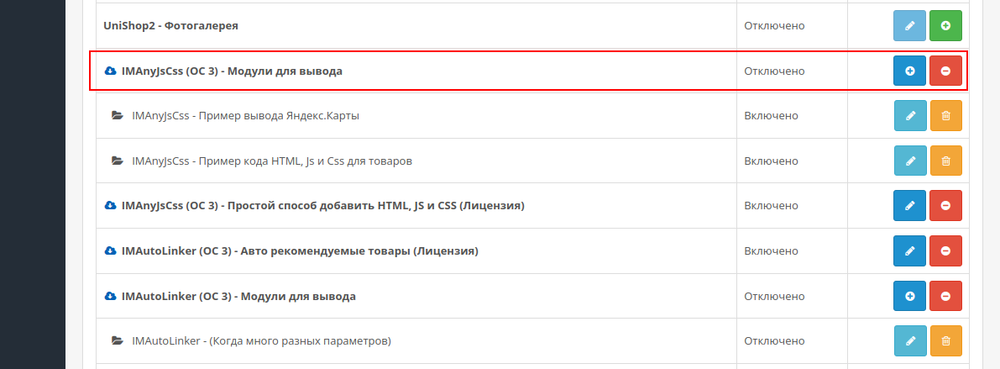
Step 2. Install the IMAnyJsCss module and add it to the layout.
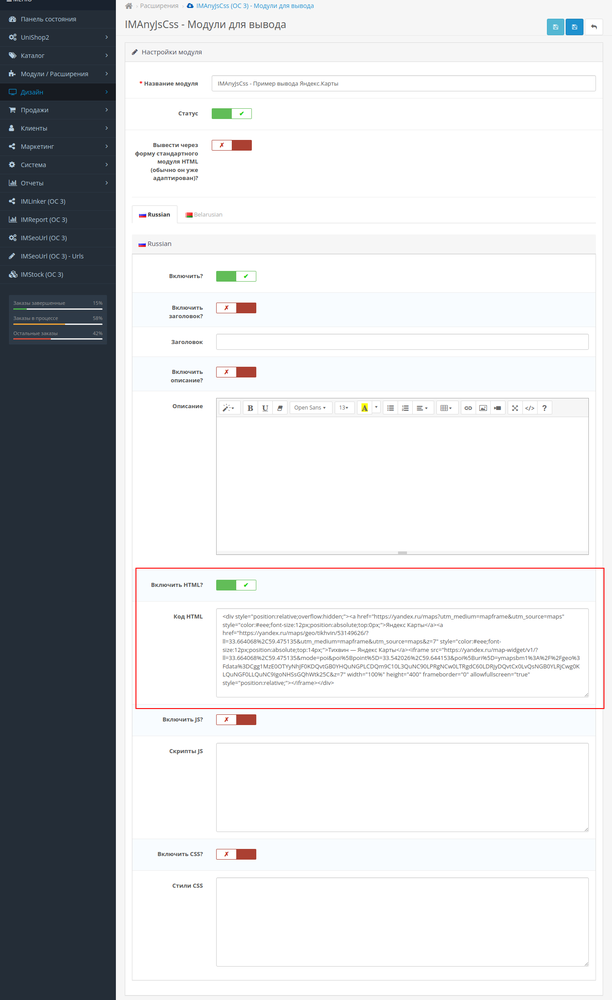
Step 3. Paste the Yandex.Maps code into the HTML Code field.
If other fields are unnecessary, they can be disabled.
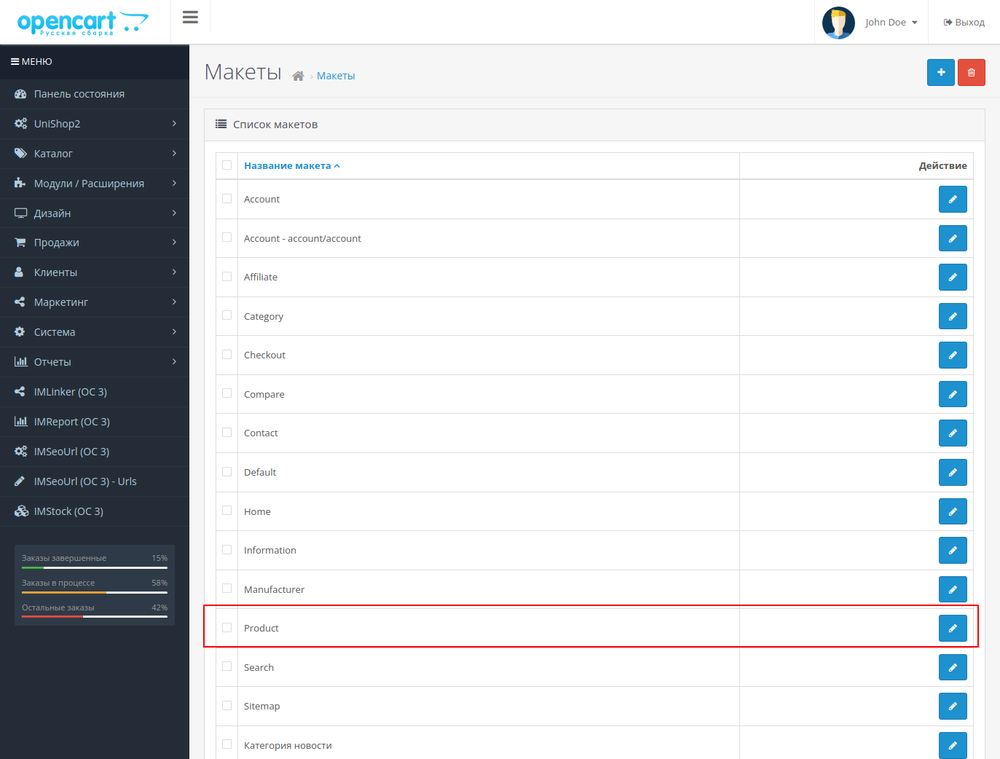
Step 4. Open the Product layout.
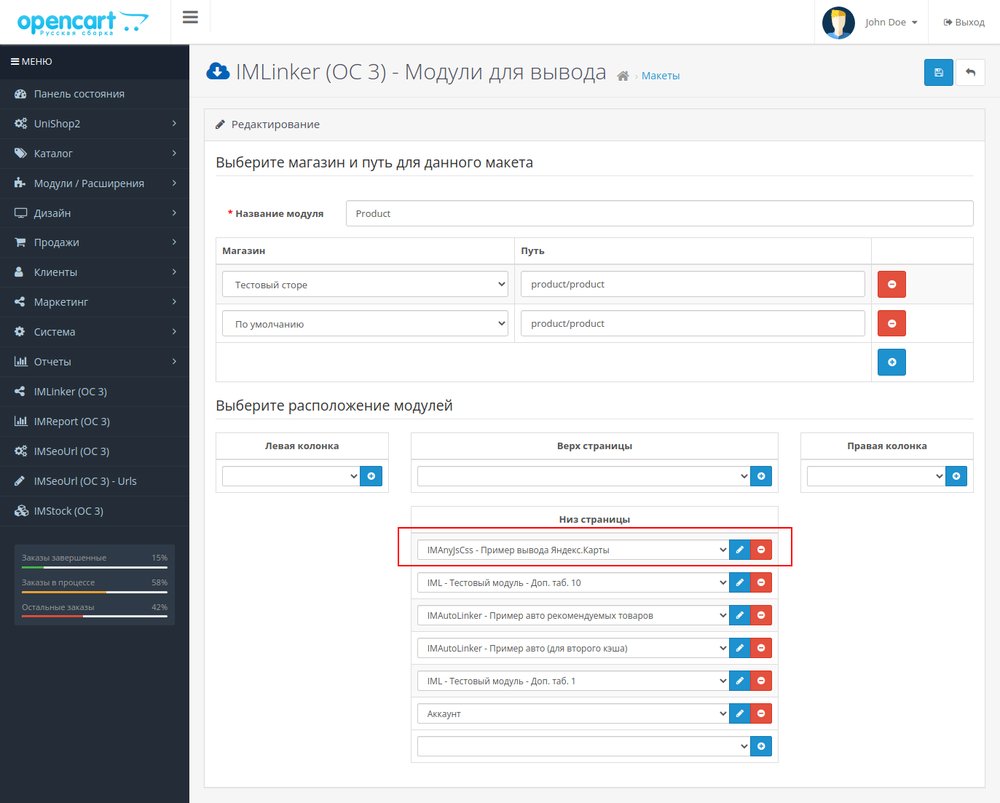
Step 5. Add the IMAnyJsCss module to the layout.
Now, open any product page. The example below uses the UniShop2 theme.
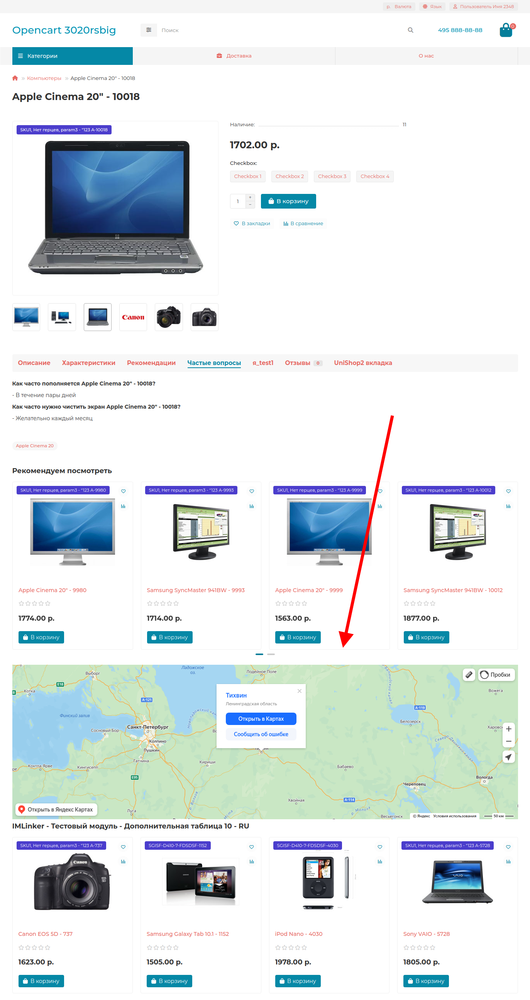
As you can see, embedding a widget with the IMAnyJsCss module is very easy and can be done in just a few minutes.
Additionally, the module offers other features like displaying a title, description, separate JS scripts, custom CSS styles, and multilingual support.




 09.10.2026