Your shopping cart is empty!

Automatic buyer group switching

Price: free
Author: Tom
Write to the author
Need paid help? Contact the site administration
Opencart version:
Need paid help? Contact the site administration
Opencart version:
LiveStore 3.*OCStore 3.*OpenCart 3.*
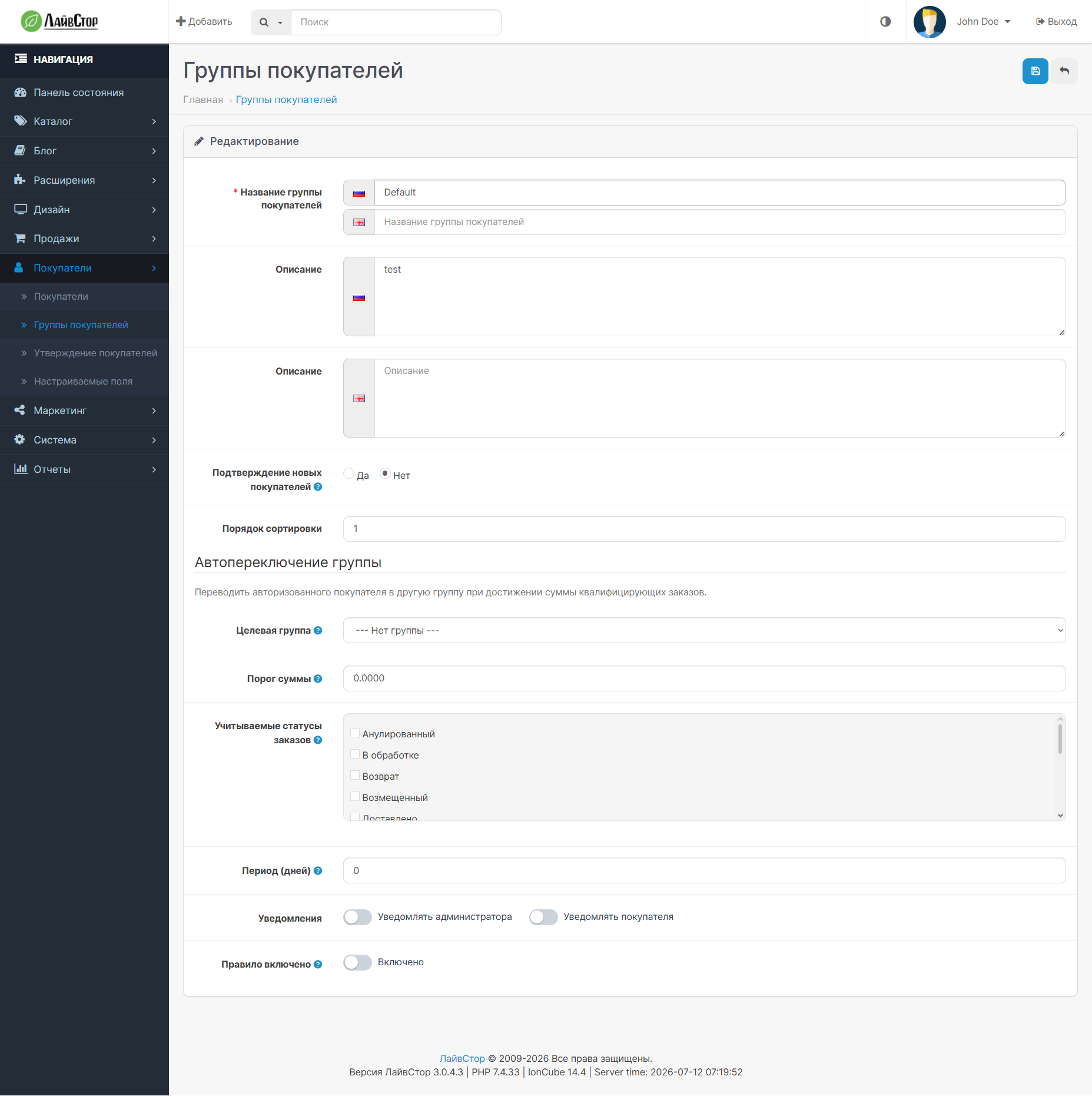
The extension automatically transfers the logged in customer to another group,
when, for example, the sum of his orders in the selected statuses reaches a threshold. Setting up in progress
in the card of each group (Buyers - Buyer groups) in the admin panel.
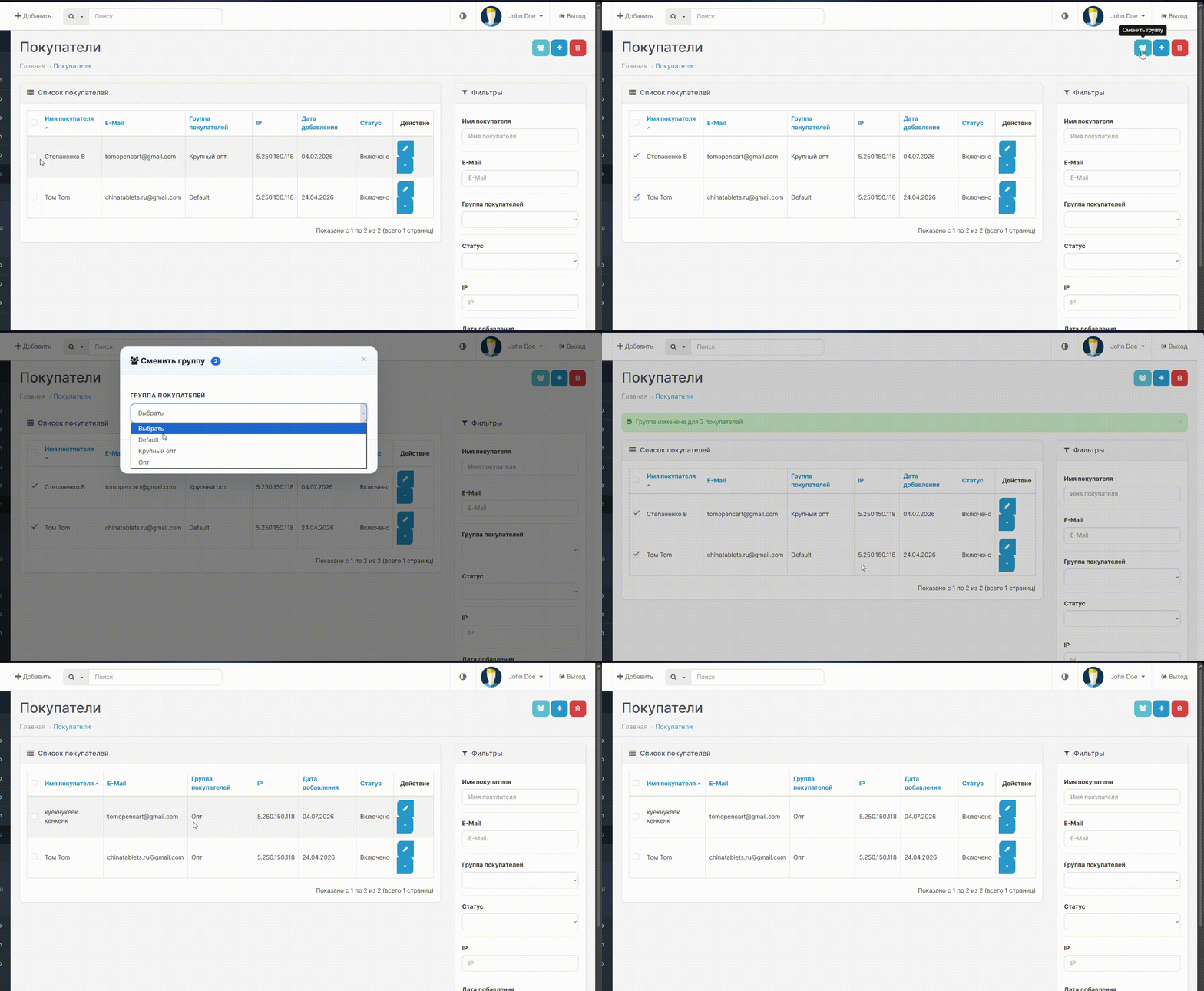
The extension also adds a button for quickly changing groups to the list of buyers (Buyers - Buyers)
All you need to do is select them en masse → select those you need to transfer to another group of customers → And apply the necessary changes in the modal window.
OPPORTUNITIES
AUTO SWITCH (in the group card):
— Order amount threshold for increasing
— Target group selection (promotion)
— Selection of qualifying order statuses
— Accounting window: N last days (0 = all the time)
— Decreasing the group if there is insufficientamount
— Notification of the buyer by email (separately for promotion/downgrade)
— Administrator notification by email
— Enable/disable the rule
- Demote link (demote_group_id) between groups
QUICK GROUP CHANGE (in the buyer list):
— Button in the list of buyers
— Mass selection via checkboxes
— Modal window with group selection
— AJAX application without page reload
— Notification of the result (success/warning)
VALIDATION (when saving group):
— Boost loop prohibition (A → B → ... → A)
— Prohibition of ambiguous downgrade feedback
— Checking that the target group exists and is different from the current one
— The amount threshold must be a non-negative number
— At least one status must be selectedorder
INSTALLATION
1. Extensions → Install extensions → download .ocmod.zip
2. Extensions → Modifiers → Refresh button
3. Control panel (first page in the admin panel) → gear (gear icon at the top right) → clear cache
The first opening of Buyers → Buyer Groups will start the database migration.
SETTINGS
1. Buyers → Buyer groups → edit group
2. The “Auto Group Switching” section will appear at the bottom of the card.
3. Set the threshold, target group, order statuses, window in days, notifications
4. Save
5. Repeat for each group in the loyalty chain
Quick group change: Buyers → Buyers → mark buyers →
button with the user icon → Click the blue one at the top righticon → select group → apply.
HOW THE TRANSITION TO ANOTHER GROUP OCCUR
The transition is based on order statuses - simple and clear:
— You choose which order statuses to consider (for example, “Completed” or
"Paid") Only orders in these statuses are included in the amount.
— You can count for a period (for example, for the last 90 days) or for all time.
— As soon as the amount reaches the threshold, the buyer immediately moves to a new group.
— The transition occurs at the moment when the order receives the desired status. It doesn't matter
who set the status: payment module after payment or admin manually.
— If the payment is confirmed automatically (via the payment module), change
Manual status is NOT necessary - the transition will happen automatically, immediately after payment.
— The new discount begins to apply whenthe next time the page is opened by the buyer.
— If a reduction is enabled and the amount drops (the order is canceled/returned), the buyer
will also automatically return to the previous group.
— An order in an unaccounted status (for example, “Waiting for payment”) is not yet considered;
it will begin to be taken into account when it enters the selected status.
RESTRICTIONS
— For each group there is one transition rule. A chain of levels (for example,
Wholesale → Large wholesale → VIP) you build yourself, setting a rule in each group.
— Downgrading returns the buyer to only one group. Setting where in one
a group is led by demotion from several at once, expansion is not supported
will warn you about this when saving.
— The rules are common to all stores. If you have severalshowcases (multi-store),
It is impossible to set different rules for each - the same ones apply.
WHEN RECOUNTING STARTS
The main thing is the order status change event:
— For any change in order status (payment through a payment module, change of status
in the admin panel, via the API) recalculation works immediately, without waiting for a visit
buyer.
Additionally (safety net) recalculation is started when the buyer enters a:
— Successful checkout page
— Login step in registration
— Personal account
when, for example, the sum of his orders in the selected statuses reaches a threshold. Setting up in progress
in the card of each group (Buyers - Buyer groups) in the admin panel.
The extension also adds a button for quickly changing groups to the list of buyers (Buyers - Buyers)
All you need to do is select them en masse → select those you need to transfer to another group of customers → And apply the necessary changes in the modal window.
OPPORTUNITIES
AUTO SWITCH (in the group card):
— Order amount threshold for increasing
— Target group selection (promotion)
— Selection of qualifying order statuses
— Accounting window: N last days (0 = all the time)
— Decreasing the group if there is insufficientamount
— Notification of the buyer by email (separately for promotion/downgrade)
— Administrator notification by email
— Enable/disable the rule
- Demote link (demote_group_id) between groups
QUICK GROUP CHANGE (in the buyer list):
— Button in the list of buyers
— Mass selection via checkboxes
— Modal window with group selection
— AJAX application without page reload
— Notification of the result (success/warning)
VALIDATION (when saving group):
— Boost loop prohibition (A → B → ... → A)
— Prohibition of ambiguous downgrade feedback
— Checking that the target group exists and is different from the current one
— The amount threshold must be a non-negative number
— At least one status must be selectedorder
INSTALLATION
1. Extensions → Install extensions → download .ocmod.zip
2. Extensions → Modifiers → Refresh button
3. Control panel (first page in the admin panel) → gear (gear icon at the top right) → clear cache
The first opening of Buyers → Buyer Groups will start the database migration.
SETTINGS
1. Buyers → Buyer groups → edit group
2. The “Auto Group Switching” section will appear at the bottom of the card.
3. Set the threshold, target group, order statuses, window in days, notifications
4. Save
5. Repeat for each group in the loyalty chain
Quick group change: Buyers → Buyers → mark buyers →
button with the user icon → Click the blue one at the top righticon → select group → apply.
HOW THE TRANSITION TO ANOTHER GROUP OCCUR
The transition is based on order statuses - simple and clear:
— You choose which order statuses to consider (for example, “Completed” or
"Paid") Only orders in these statuses are included in the amount.
— You can count for a period (for example, for the last 90 days) or for all time.
— As soon as the amount reaches the threshold, the buyer immediately moves to a new group.
— The transition occurs at the moment when the order receives the desired status. It doesn't matter
who set the status: payment module after payment or admin manually.
— If the payment is confirmed automatically (via the payment module), change
Manual status is NOT necessary - the transition will happen automatically, immediately after payment.
— The new discount begins to apply whenthe next time the page is opened by the buyer.
— If a reduction is enabled and the amount drops (the order is canceled/returned), the buyer
will also automatically return to the previous group.
— An order in an unaccounted status (for example, “Waiting for payment”) is not yet considered;
it will begin to be taken into account when it enters the selected status.
RESTRICTIONS
— For each group there is one transition rule. A chain of levels (for example,
Wholesale → Large wholesale → VIP) you build yourself, setting a rule in each group.
— Downgrading returns the buyer to only one group. Setting where in one
a group is led by demotion from several at once, expansion is not supported
will warn you about this when saving.
— The rules are common to all stores. If you have severalshowcases (multi-store),
It is impossible to set different rules for each - the same ones apply.
WHEN RECOUNTING STARTS
The main thing is the order status change event:
— For any change in order status (payment through a payment module, change of status
in the admin panel, via the API) recalculation works immediately, without waiting for a visit
buyer.
Additionally (safety net) recalculation is started when the buyer enters a:
— Successful checkout page
— Login step in registration
— Personal account
Distribution method:
Free
Opencart version:
LiveStore 3.*OCStore 3.*OpenCart 3.*
PHP verision:
PHP 7.3PHP 7.4
Activation:
Not required
Getting files:
On site, in the personal account
Protection system:
No
VQmod:
No
Ocmod:
Yes
Events:
Yes
Uploaded:
12.07.2026
Updated:
28.08.2026
Viewed:
839
Write a review
Your Name:Your Review: Note: HTML is not translated!
Rating: Bad Good
Enter the code in the box below:
To download this free product, you do not need to order it, just log in.


