Your shopping cart is empty!

Unishop 2 - auto-replacement of the "ADD TO CART" button
Price: free
Author: Tom
Write to the author
Need paid help? Contact the site administration
Opencart version:
Need paid help? Contact the site administration
Opencart version:
LiveStore 3.*OCStore 3.*
This is an addition exclusively to the module “Customer Appeals” in the Unishop2 topic!
It does a simple but very useful thing:
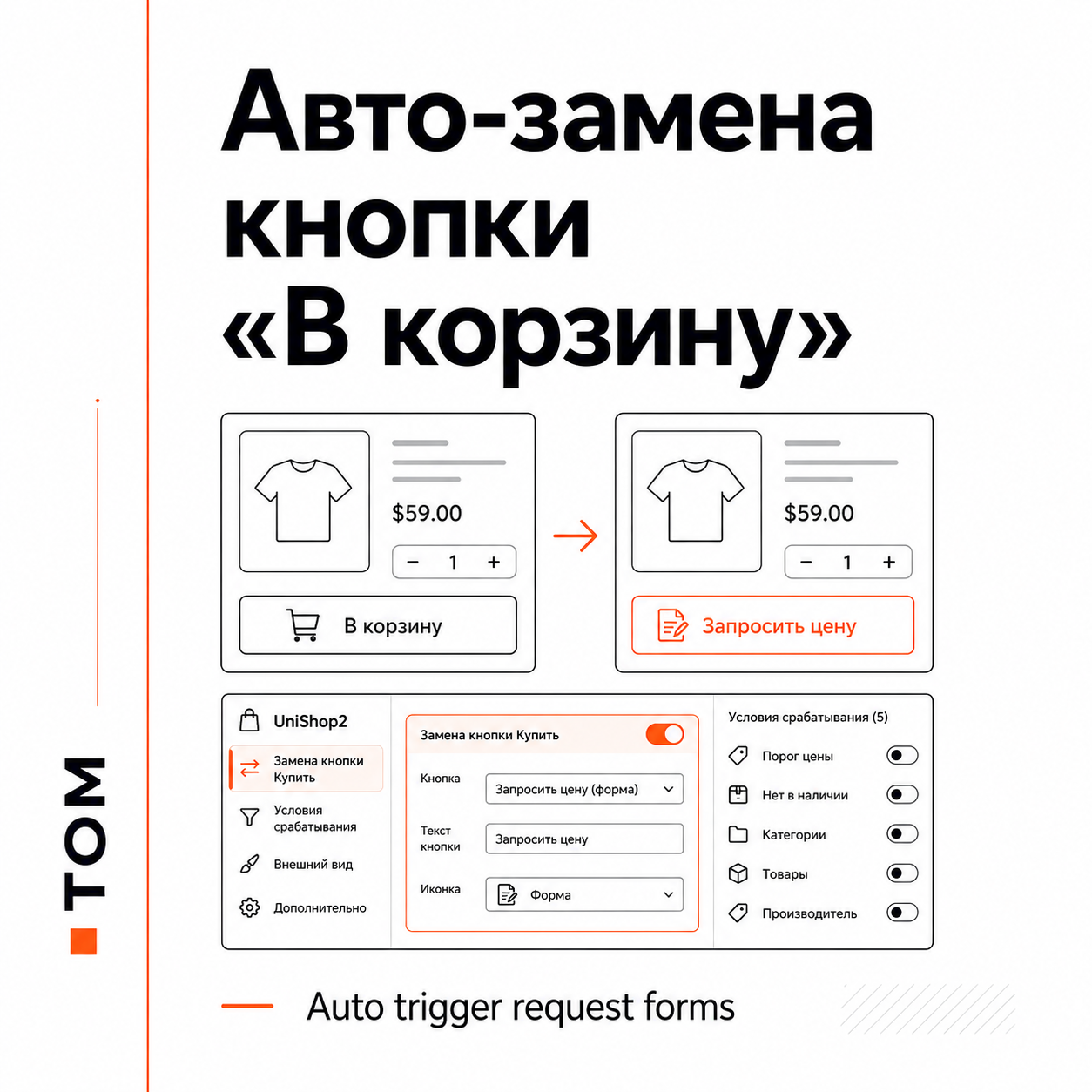
- Instead of the “Add to cart” button, the product has a contact form button with any name for the button itself and a set of fields in the form.
For example, instead of “Buy”, the client sees “Request for price” and clicks on it - the form that you set up opens.
Where is it turned on?
Admin → Unishop2 → Customer requests → Settings →
“Custom Form Settings” tab → open any form.
At the very bottom of the form settings you will see an orange block
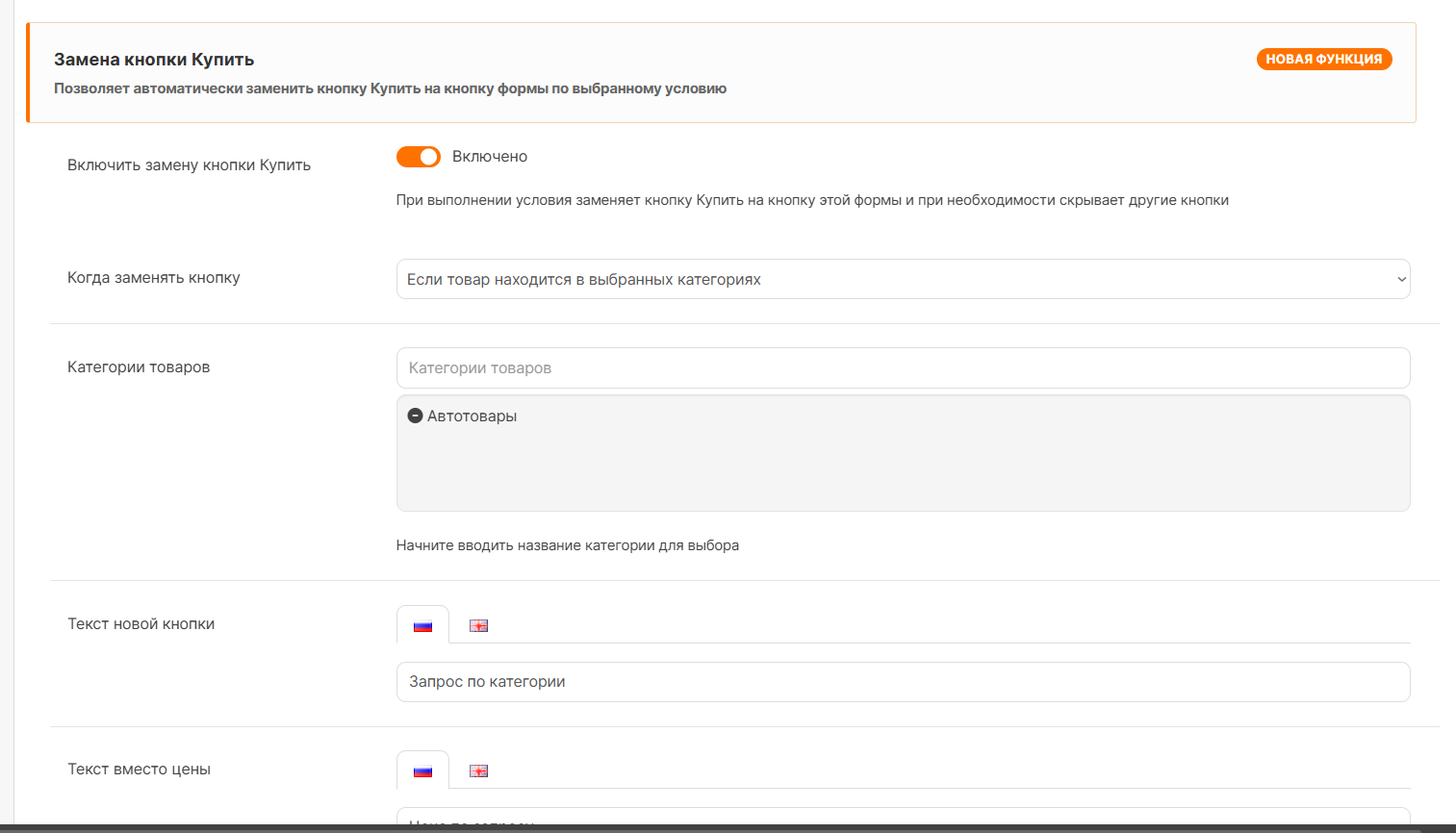
“Replacing the Buy button” - this is what it isauto-replace.
You select ONE condition out of five:
1. The price is equal to the threshold
— For example, threshold = 0. All products with a price of 0 rubles
The “Add to cart” button will turn into a form button.
Convenient for “made to order” goods without a specified price.
2. Out of stock
— When a product is out of stock, instead of a purchase button
the form button is shown. The client leaves a request,
and does not leave the site.
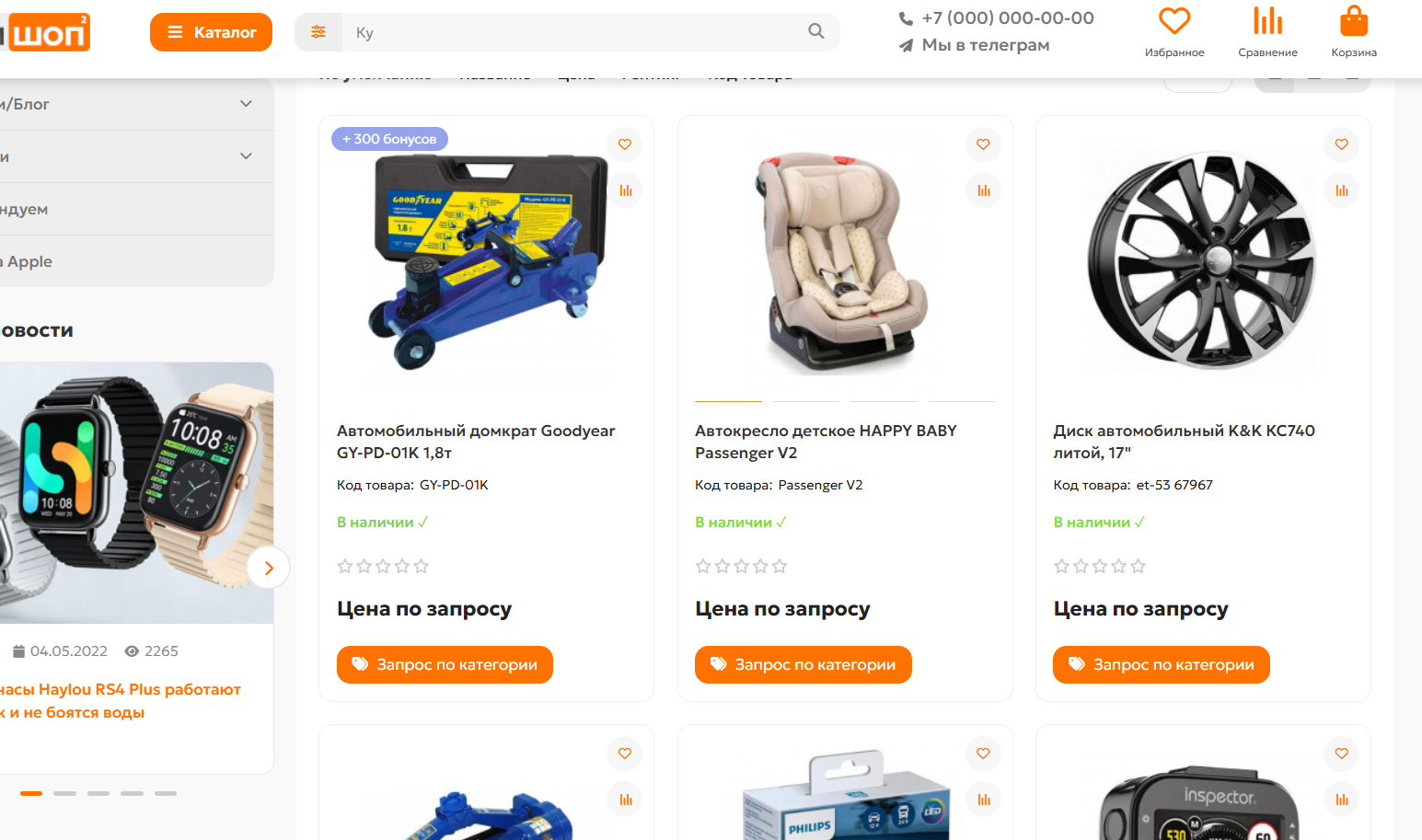
3. Products in categories
— Select categories and ALL products within them
get a form button instead of a cart.
For example, the entire “Wholesale Products” section.
4. Specific products
— You manually select productsby searching by name.
Only they will have a form button.
5. Brand products
— All products of the selected manufacturer.
For example, for a partner brand with special conditions.
How to configure a button?
In the “Buy Button Replacement” block, check the “Enable” box,
then configure:
● Button text
— For example: “Leave a request”, “Request a price”,
“Find out about arrival”, “To order”.
Can be set for each store language separately.
● Text instead of price
— Instead of “1,250 rub.” the buyer will see
“On request” or “Price to be confirmed.”
● Button icon
— Select an icon from the FontAwesome catalog.
The default is an envelope icon (letter).
● Compact mode
— Shows onlyicon without text.
Convenient in narrow cards and on mobile phones.
● Hide the “Add to Cart” button
— Completely removes the purchase button and quantity selection.
The product cannot be placed in the cart - only the form.
● Hide “Quick order”
— Removes the Unishop2 quick order button (if it exists).
● Ignore options
— For the “price” condition. Checks the base price of an item
excluding extra charges for options (color, size, etc.).
Real life examples
Situation 1: “Products with zero price”
You have items whose price = 0 (for example,
exclusive equipment “to order”). Include a condition
“Price equal to threshold” = 0 → appears on all such products
"Request a Quote" button, the client fills out the form - youanswer.
Situation 2: “Goods to order”
In the “Custom-made furniture” category, all products instead of
“Buy” button “Place an order” appears.
Condition: “Product in categories”, the desired category is selected.
Situation 3: “Sale of leftovers”
Items that are out of stock will be automatically sent to you.
“Report receipt” button. Condition: “Out of stock.”
Important!
✓ No kernel changes - the extension is installed via OCMOD.
✓ No new tables in the database.
✓ Does not break the standard operation of the shopping cart - where is the condition
failed, the “Add to Cart” button works as usual.
✓ Can be used with several forms at once.
Each form has its own condition,your text and icon.
✓ If the product fits several forms, it will work
The FIRST form in order in the list.
Installation
1. Go to the admin panel → Extensions → Install extensions.
2. Click "Upload", select the file
uni_request_auto_trigger.ocmod.zip
3. After installation, click “Clear cache” (blue button
top right in the Modifiers section).
4. Go to the form settings (as described above)
and enable auto-replacement.
===================================================================================
If something doesn't work
1. Check that the “Customer Appeals” module is enabled.
2. Clear the OCMOD cache: Modifiers → Refresh button.
3. Clear the theme cache: Modules → “Cleartopic cache".
4. Make sure that the checkbox is checked in the form settings
“Enable Buy Button Replacement.”
The addition is published “as is”, technical support is not provided. More detailed instructions are in the archive in the form of description.html.
For coffee!
It does a simple but very useful thing:
- Instead of the “Add to cart” button, the product has a contact form button with any name for the button itself and a set of fields in the form.
For example, instead of “Buy”, the client sees “Request for price” and clicks on it - the form that you set up opens.
Where is it turned on?
Admin → Unishop2 → Customer requests → Settings →
“Custom Form Settings” tab → open any form.
At the very bottom of the form settings you will see an orange block
“Replacing the Buy button” - this is what it isauto-replace.
You select ONE condition out of five:
1. The price is equal to the threshold
— For example, threshold = 0. All products with a price of 0 rubles
The “Add to cart” button will turn into a form button.
Convenient for “made to order” goods without a specified price.
2. Out of stock
— When a product is out of stock, instead of a purchase button
the form button is shown. The client leaves a request,
and does not leave the site.
3. Products in categories
— Select categories and ALL products within them
get a form button instead of a cart.
For example, the entire “Wholesale Products” section.
4. Specific products
— You manually select productsby searching by name.
Only they will have a form button.
5. Brand products
— All products of the selected manufacturer.
For example, for a partner brand with special conditions.
How to configure a button?
In the “Buy Button Replacement” block, check the “Enable” box,
then configure:
● Button text
— For example: “Leave a request”, “Request a price”,
“Find out about arrival”, “To order”.
Can be set for each store language separately.
● Text instead of price
— Instead of “1,250 rub.” the buyer will see
“On request” or “Price to be confirmed.”
● Button icon
— Select an icon from the FontAwesome catalog.
The default is an envelope icon (letter).
● Compact mode
— Shows onlyicon without text.
Convenient in narrow cards and on mobile phones.
● Hide the “Add to Cart” button
— Completely removes the purchase button and quantity selection.
The product cannot be placed in the cart - only the form.
● Hide “Quick order”
— Removes the Unishop2 quick order button (if it exists).
● Ignore options
— For the “price” condition. Checks the base price of an item
excluding extra charges for options (color, size, etc.).
Real life examples
Situation 1: “Products with zero price”
You have items whose price = 0 (for example,
exclusive equipment “to order”). Include a condition
“Price equal to threshold” = 0 → appears on all such products
"Request a Quote" button, the client fills out the form - youanswer.
Situation 2: “Goods to order”
In the “Custom-made furniture” category, all products instead of
“Buy” button “Place an order” appears.
Condition: “Product in categories”, the desired category is selected.
Situation 3: “Sale of leftovers”
Items that are out of stock will be automatically sent to you.
“Report receipt” button. Condition: “Out of stock.”
Important!
✓ No kernel changes - the extension is installed via OCMOD.
✓ No new tables in the database.
✓ Does not break the standard operation of the shopping cart - where is the condition
failed, the “Add to Cart” button works as usual.
✓ Can be used with several forms at once.
Each form has its own condition,your text and icon.
✓ If the product fits several forms, it will work
The FIRST form in order in the list.
Installation
1. Go to the admin panel → Extensions → Install extensions.
2. Click "Upload", select the file
uni_request_auto_trigger.ocmod.zip
3. After installation, click “Clear cache” (blue button
top right in the Modifiers section).
4. Go to the form settings (as described above)
and enable auto-replacement.
===================================================================================
If something doesn't work
1. Check that the “Customer Appeals” module is enabled.
2. Clear the OCMOD cache: Modifiers → Refresh button.
3. Clear the theme cache: Modules → “Cleartopic cache".
4. Make sure that the checkbox is checked in the form settings
“Enable Buy Button Replacement.”
The addition is published “as is”, technical support is not provided. More detailed instructions are in the archive in the form of description.html.
For coffee!
Distribution method:
Free
Opencart version:
LiveStore 3.*OCStore 3.*
PHP verision:
PHP 7.3PHP 7.4
Activation:
Not required
Getting files:
On author's site, after purchase
Protection system:
No
VQmod:
No
Ocmod:
Yes
Events:
No
Uploaded:
13.07.2026
Updated:
04.09.2026
Viewed:
944
Write a review
Your Name:Your Review: Note: HTML is not translated!
Rating: Bad Good
Enter the code in the box below:



To download this free product, you do not need to order it, just log in.


Только вот не разобрался, когда в карточку товара проваливаешься, кнопка "запрос цены" остаётся, а цена становится 0. Это так задумано, баг или я рукожоп?
И причина может быть в любом стороннем расширении, которое меняет логику как шаблона так и функций самого opencart.
Только что проверил на чистой демке шаблона и все функции прекрасно работают.
Ни на одном не появился функционал в настройках обращения..